> voicepanel / docs / study reference

One feedback engine for every research method

Voicepanel is a set of building blocks that snap together into any study design you want. Put the tasks of a usability test, the logic of a survey, and the depth of an interview into one study. Then send it to exactly the people you need to hear from.

  • 7

    question types

  • 11

    asset types

  • 4

    recording modes

  • 37

    respondent languages

See example studiesView as MarkdownREST APIMCP server

A study is a stack of sections built from blocks.

Single choice

Open-ended

Section 1

Task

Rating scale

Prototype

Section 2

Record screen + webcam

AI conversation

Section 3

Record webcam

On this page

00

Introduction

How does a Voicepanel study work?

Start here. Learn what a study is made of, see one complete example, and create your first study with an AI assistant, with the API, or in the Voicepanel app.

  • Overview
  • Anatomy of a study
  • Example study
  • Quick start

Overview

Voicepanel is a mixed-method research platform. One study can hold survey questions, usability tasks, prototype and media tests, and interview-style open questions. Respondents answer by voice, by text, or with taps and clicks, and Voicepanel can record their voice, webcam, and screen while they do.

AI is a feature of specific blocks, not the whole session. Turn on AI probing for an open-ended question, and Voicepanel asks follow-up questions based on the answer. Add an AI conversation step for a short, timed interview. Every other block works the way a survey or a usability test works.

Every study has two parts:

PART 1

Design

What feedback do you collect?

The design is the study itself: the plan, and the settings around it. Stack sections, fill each one with questions, tasks, and assets, and choose what to record.

  • Structure
  • Questions
  • Answer modes
  • Recording
  • Assets
  • Layouts
  • Logic
  • Settings

PART 2

Distribution

Who gives the feedback?

A distribution decides who takes the study and how they reach it. Pick a channel, target an audience, screen each person, and balance the sample with quotas.

Let an AI assistant write a study through the MCP server, send it to the REST API, or build it in the Voicepanel app. All three accept the schema on this page.

Anatomy of a study

A study has a design and one or more distributions. The design is the plan plus the study settings. A plan is a stack of sections. Each section holds its steps. A section can also hold one asset, one recording mode, and one display condition, and all three apply to every step in the section. A distribution holds a channel, an audience, a screener, and quotas.

The example study below shows each of these parts in a real product feedback study.

Example study

This product feedback study mixes four methods in 4 sections:

  • Foundations. Choice questions and an open-ended question about how the team uses the app.
  • Usability. A task on a prototype, with the screen and voice recorded.
  • Loop. The section repeats for each of three feature ideas, with the webcam and voice recorded. The question names each feature with {{stimulus.metadata.feature}}.
  • Reflection. An NPS question and a short AI conversation, with the voice recorded.

An asset spans its whole section, and the steps sit on top of it.

Mixed-method product feedback

Product feedback study for a team planning app

Foundational questions about how the team uses the app. Then a usability task on a prototype, a loop through three feature ideas, and a reflection section. The study records the screen, then the webcam, then the voice.

Usually run in: A survey tool, a usability testing tool, and an interview tool, used together

Design · 4 sections

  • Desktop only

Single choice

Multiple choice

Open-ended

Section 1: Foundations

Task

Rating scale

1–5

Prototype

New project setup

Section 2: Usability task

Record screen + voice

Rating scale

1–7

AI probing

Open-ended

Group

loops through all 3 images, one at a time

+ Metadata

Section 3: Feature loop

Record webcam + voice

Rating scale

0–10

AI conversation

2 min

Section 4: Reflection

Record voice

Key

  • Section

  • Asset (spans its section)

  • Closed question

  • Open-ended question

  • AI probing & conversations

  • Task

  • Recording

  • Logic

  • Study setting

Distribution · who answers

Send a link to 40 active customers. Voicepanel asks each respondent for their email, so you can match answers to accounts.

Channel

Link

Quota

40 responses, lifetime

Language

en-US

Email

Collected before the study

This is 1 of 20 example studies. The others, from usability tests to AI answer evaluations, are in Part 3, What you can build.

See all 20 examples ↓

Quick start

With your own AI assistant

Connect Claude, Claude Code, or another MCP client to the Voicepanel MCP server, then describe the study and the audience. The assistant writes the plan with create_study or generate_study, sets up the distribution, and review_study scores the plan before you launch.

prompt

Create a Voicepanel study that tests our new checkout prototype at https://www.figma.com/proto/abc123. Record the screen, ask respondents to buy two items, follow up with anyone who can't finish, and end with an NPS question. Then recruit 15 US adults who shop online at least once a month from a panel.

With the REST API

Send the plan as the plan field of POST /api/v1/studies. Then create a distribution with POST /api/v1/distributions and publish it with POST /api/v1/distributions/{id}/publish. Create an API token in the dashboard under Settings, API Tokens.

bash

# 1. Create the study (the design)
curl -X POST https://app.voicepanel.co/api/v1/studies \
  -H "Authorization: Bearer $VOICEPANEL_API_KEY" \
  -H "Content-Type: application/json" \
  -d '{
    "account_id": "YOUR_ACCOUNT_ID",
    "display_name": "Checkout feedback",
    "objective": "Find out where buyers get stuck in checkout.",
    "plan": {
      "version": "2025_04",
      "randomizations": [],
      "sections": [
        {
          "intro": null,
          "steps": [
            { "type": "long_question", "question": "What almost stopped you from buying today?" }
          ]
        }
      ]
    }
  }'

# 2. Create a distribution (who answers)
curl -X POST https://app.voicepanel.co/api/v1/distributions \
  -H "Authorization: Bearer $VOICEPANEL_API_KEY" \
  -H "Content-Type: application/json" \
  -d '{ "study_id": "STUDY_ID", "name": "Recent buyers", "type": "link", "quota_limit": 100 }'

# 3. Publish it
curl -X POST https://app.voicepanel.co/api/v1/distributions/DISTRIBUTION_ID/publish \
  -H "Authorization: Bearer $VOICEPANEL_API_KEY"

In the Voicepanel app

When you create a new study in the Voicepanel app, you can start from scratch or start with AI. From scratch, you add the sections, assets, recording modes, and blocks yourself in the study editor. With AI, you describe your research goal to the built-in AI setup assistant, and it drafts the full plan for you to review. In both cases, you can add, remove, and reorder blocks at any time. Then set up each distribution on the Distribute tab.

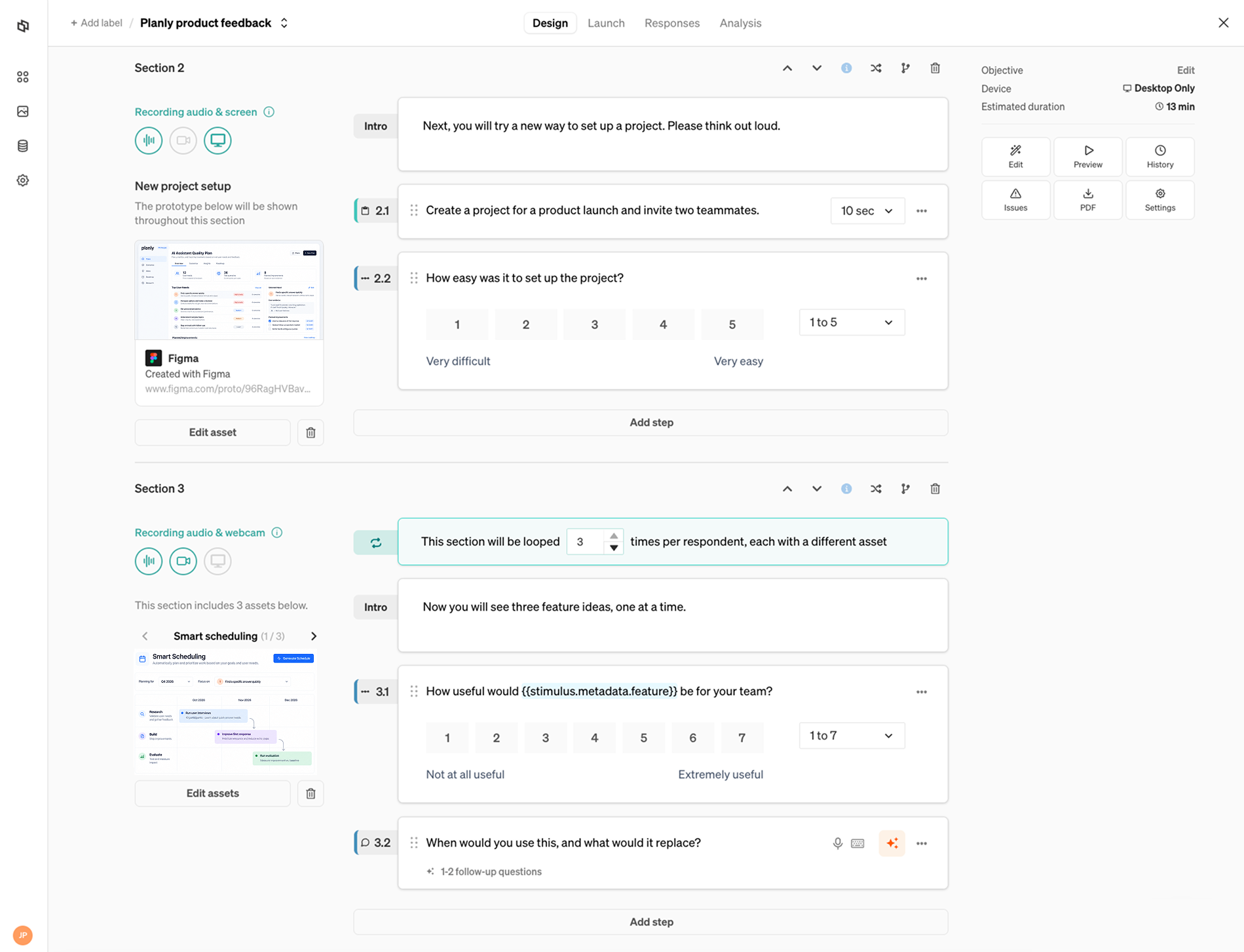
Sections 2 and 3 of the Planly product feedback study in the Voicepanel study editor. Section 2 has a Figma prototype, screen recording, a task, and a rating scale. Section 3 loops through three feature images with webcam recording.
Sections 2 and 3 of the example study in the Voicepanel study editor.

01

Design

What feedback do you collect?

The design is the study itself: the plan, and the settings around it. Stack sections, fill each one with questions, tasks, and assets, and choose what to record.

One design can hold a survey, a usability test, and an interview at the same time.

Design / Structure

Plan and sections

A study plan is a JSON object. It holds an ordered list of sections. Each section holds an ordered list of steps, and can add one asset, one recording mode, and one display condition.

The respondent moves through the sections in order, unless a randomization group shuffles them or a condition hides one.

Plan

plan

The root object. Every study has exactly one plan.

FieldTypeDescription

version

required

string

The schema version. Use "2025_04".

sections

required

Section[]

The sections, in authored order.

randomizations

required

Randomization[]

Groups of sections to shuffle for each respondent. Use [] for none.

device

"any" | "desktop" | "mobile" | "ios" | "android"

The device respondents must use. If you omit it on create, Voicepanel derives it from the recording modes and assets. See Device restriction.

json

{
  "version": "2025_04",
  "sections": [
    {
      "intro": null,
      "steps": [
        {
          "type": "long_question",
          "question": "What is the hardest part of your workday?"
        }
      ]
    }
  ],
  "randomizations": []
}

Section

section

A group of steps that share one asset, one recording mode, and one display condition.

Put steps in the same section when the respondent should see the same asset for all of them. Start a new section when the asset, the recording mode, or the audience changes.

FieldTypeDescription

intro

string | null

Text that introduces the section before its first step. With text-to-speech on, Voicepanel reads it aloud.

Default: null

steps

required

Step[]

The questions and tasks, in order.

stimulus

Asset | null

The asset the respondent sees or uses for the whole section. See Assets and Asset layouts.

recording

Recording | null

What Voicepanel records for the whole section: audio, webcam, desktop screen, or mobile screen. See Recording.

conditionalBranch

ConditionalBranch | null

Show the section only when a condition is true. See Logic.

json

{
  "intro": "Next, you will look at our new homepage.",
  "stimulus": {
    "type": "website",
    "url": "https://example.com",
    "name": "Homepage"
  },
  "recording": {
    "audio": true,
    "video": false,
    "screen": true,
    "mobile_screen": false
  },
  "conditionalBranch": null,
  "steps": [
    {
      "type": "task",
      "question": "Find the pricing for the team plan. Think out loud as you go.",
      "task_type": "generic_instruction"
    },
    {
      "type": "long_question",
      "question": "What did you expect to find, and what did you find?",
      "probing_type": "light"
    }
  ]
}

Design / Questions

Question types

A step is one question or one task. Every step has a "question" (the text the respondent sees and hears) and a "type". The other fields depend on the type.

Mix closed questions, which give countable results, with open-ended questions, which give the reasons. AI is a feature of two blocks: AI probing adds follow-up questions to an open-ended question, and an AI conversation runs a short interview inside the study.

Open-ended question

long_question

A free answer, spoken or typed. Turn on AI probing, and Voicepanel asks follow-up questions based on what the respondent said.

Use it for

  • Reasons, stories, and first reactions
  • Expectations before a task and reflections after it
  • Any question where you want to hear the respondent's own words
FieldTypeDescription

probing_type

"none" | "light" | "custom"

AI probing. "none" asks no follow-up questions. "light" lets the AI decide when a follow-up adds depth. "custom" follows up on the topics in probing_areas.

Default: "light"

probing_areas

string | null

The topics to probe when probing_type is "custom". Write them as plain instructions for the AI.

Default: null

response_format

"audio" | "audio_only" | "chat" | "chat_only"

How the respondent answers: by voice, by typing, or either. See Answer modes.

Default: "audio"

Custom probing · json

{
  "type": "long_question",
  "question": "Tell me about the last time you switched banks.",
  "probing_type": "custom",
  "probing_areas": "What triggered the switch, which alternatives they considered, and what almost stopped them.",
  "response_format": "audio"
}
  • Turn on probing for the two or three questions that need depth. Probing every question makes the session long.

Single choice

single_select

The respondent picks exactly one option.

Use it for

  • Frequency, category, and yes/no questions
  • The source question for a conditional section
FieldTypeDescription

options

required

Option[]

The choices, in display order. Each option is { value, anchor, exclusive }. value is the text the respondent sees, and conditional sections match on it exactly. anchor and exclusive are optional. See "Option order and exclusivity" under Logic.

shuffle_options

boolean | null

Shuffle the options for each respondent to remove position bias. Options with anchor: true keep their position.

Default: null

vertically_align_choices

boolean | null

Stack the choices in one column.

Default: null

json

{
  "type": "single_select",
  "question": "Which plan are you on today?",
  "options": [
    {
      "value": "Free"
    },
    {
      "value": "Pro"
    },
    {
      "value": "Business"
    },
    {
      "value": "I'm not sure",
      "anchor": true
    }
  ],
  "shuffle_options": false
}

Multiple choice

multi_select

The respondent picks any number of options.

Use it for

  • Awareness, usage, and consideration sets
  • Feature usage and pain point checklists
FieldTypeDescription

options

required

Option[]

The choices, in display order. Each option is { value, anchor, exclusive }. value is the text the respondent sees, and conditional sections match on it exactly. anchor and exclusive are optional. See "Option order and exclusivity" under Logic.

shuffle_options

boolean | null

Shuffle the options for each respondent to remove position bias. Options with anchor: true keep their position.

Default: null

vertically_align_choices

boolean | null

Stack the choices in one column.

Default: null

json

{
  "type": "multi_select",
  "question": "Which of these tools have you used in the past month?",
  "options": [
    {
      "value": "Notion"
    },
    {
      "value": "Asana"
    },
    {
      "value": "Linear"
    },
    {
      "value": "Jira"
    },
    {
      "value": "None of these",
      "anchor": true,
      "exclusive": true
    }
  ],
  "shuffle_options": true
}

Rating scale

rating_scale

A numeric scale with labeled end points. Use it for NPS, CSAT, ease, clarity, and appeal.

Use it for

  • Net Promoter Score (0–10)
  • Satisfaction, ease, and likelihood scores (1–5, 1–7, 1–10)
  • The source question for a conditional section, such as a follow-up for low scores
FieldTypeDescription

options

required

Option[]

Consecutive integers as strings. Use exactly one of these ranges: 1–5, 1–7, 1–10, or 0–10. Example: [{ "value": "1" }, ..., { "value": "5" }].

lowest_rating_label

string | null

The label under the lowest value.

Default: null

highest_rating_label

string | null

The label under the highest value.

Default: null

Net Promoter Score · json

{
  "type": "rating_scale",
  "question": "How likely are you to recommend us to a friend or colleague?",
  "options": [
    {
      "value": "0"
    },
    {
      "value": "1"
    },
    {
      "value": "2"
    },
    {
      "value": "3"
    },
    {
      "value": "4"
    },
    {
      "value": "5"
    },
    {
      "value": "6"
    },
    {
      "value": "7"
    },
    {
      "value": "8"
    },
    {
      "value": "9"
    },
    {
      "value": "10"
    }
  ],
  "lowest_rating_label": "Not at all likely",
  "highest_rating_label": "Extremely likely"
}

Five-point ease score · json

{
  "type": "rating_scale",
  "question": "How easy was it to find what you needed?",
  "options": [
    {
      "value": "1"
    },
    {
      "value": "2"
    },
    {
      "value": "3"
    },
    {
      "value": "4"
    },
    {
      "value": "5"
    }
  ],
  "lowest_rating_label": "Very difficult",
  "highest_rating_label": "Very easy"
}
  • A rating scale has two labels only. There is no midpoint label.
  • Rating scales keep their order. shuffle_options does not apply.

Ranking

ranking

The respondent puts the options in order.

Use it for

  • Feature and roadmap prioritization
  • Ordering messages, names, or benefits by appeal
FieldTypeDescription

options

required

Option[]

The choices, in display order. Each option is { value, anchor, exclusive }. value is the text the respondent sees, and conditional sections match on it exactly. anchor and exclusive are optional. See "Option order and exclusivity" under Logic.

shuffle_options

boolean | null

Shuffle the options for each respondent to remove position bias. Options with anchor: true keep their position.

Default: null

json

{
  "type": "ranking",
  "question": "Rank these features from most to least important to you.",
  "options": [
    {
      "value": "Offline mode"
    },
    {
      "value": "Shared workspaces"
    },
    {
      "value": "Calendar sync"
    },
    {
      "value": "Custom templates"
    }
  ],
  "shuffle_options": true
}

Task

task

An instruction the respondent carries out, such as a usability task. The respondent reports whether they completed it.

Pair a task with an asset on the same section: a website, a prototype, or a mobile app. Add recording to capture what the respondent says and does during the task. Use the completion result to show a follow-up section only to the respondents who did not finish.

Use it for

  • Usability tasks on websites, prototypes, and apps
  • Instructions for physical products and in-home tests
FieldTypeDescription

task_type

required

"generic_instruction" | "visit_website" | "download_app" | "open_app" | "watch_video"

Use "generic_instruction". The section asset tells the respondent where to go. The MCP server and the AI editor store every task with this value.

expected_duration_seconds

number

The time you expect the task to take. Voicepanel uses it for the estimated study length only.

Default: 60

json

{
  "type": "task",
  "question": "Using the site above, book a table for two this Friday at 7pm. Think out loud as you go.",
  "task_type": "generic_instruction",
  "expected_duration_seconds": 180
}
  • Do not add a task that tells respondents to watch a video or listen to audio. The video, youtube, and audio assets already do this.

AI conversation

conversation

A timed, free-form AI conversation with the respondent, about the topics so far or about a guide you write. Use it to put an interview inside a survey or a usability test.

Use it for

  • A short wrap-up that catches what your questions missed
  • Semi-structured interview blocks with a discussion guide
FieldTypeDescription

time_limit_seconds

required

number

The length of the conversation, in seconds.

conversation_mode

required

"no-guide" | "guide"

"no-guide" lets the AI follow the respondent. "guide" follows conversation_guide.

conversation_guide

string | null

The discussion guide, used when conversation_mode is "guide".

Default: null

response_format

"audio" | "audio_only" | "chat" | "chat_only"

How the respondent answers: by voice, by typing, or either. See Answer modes.

Default: "audio"

Guided interview block · json

{
  "type": "conversation",
  "question": "Let's talk about how your team plans its work.",
  "time_limit_seconds": 300,
  "conversation_mode": "guide",
  "conversation_guide": "Cover: who owns planning, which tools they use, where handoffs break, and one thing they would change.",
  "response_format": "audio"
}

Open wrap-up · json

{
  "type": "conversation",
  "question": "Is there anything else you want to tell us?",
  "time_limit_seconds": 60,
  "conversation_mode": "no-guide"
}

Design / Answer modes

Answer modes

Respondents answer open-ended questions and conversations by voice by default. Set response_format on each step to allow typing, or to require one mode.

Choice, rating, and ranking steps take taps or clicks. To read every question aloud, turn on text-to-speech in the study settings.

Response format

response_format

Voice, text, or both, for each long_question and conversation step.

ValueBehavior

audio

Voice by default. The respondent can switch to typing.

audio_only

Voice only.

chat

Typing by default. The respondent can switch to voice.

chat_only

Typing only.

A typed answer for a sensitive question · json

{
  "type": "long_question",
  "question": "Is there anything about your finances you'd prefer to type rather than say?",
  "probing_type": "none",
  "response_format": "chat_only"
}

Design / Recording

Recording

Recording captures a whole section, from its first step to its last. Use it for think-aloud usability tests, facial reactions, and screen capture. Set it on the section as { "audio", "video", "screen", "mobile_screen" }.

Voice answers to open-ended questions do not need a recording block. Set recording to null for a section that records nothing.

Audio (think-aloud)

recording.audio

Record the respondent's voice for the whole section, for example while they use a website.

json

{
  "audio": true,
  "video": false,
  "screen": false,
  "mobile_screen": false
}

Webcam video

recording.video

Record the respondent's camera. Use it for facial reactions to ads and for physical product tests.

json

{
  "audio": true,
  "video": true,
  "screen": false,
  "mobile_screen": false
}
  • Webcam recording also needs audio: true.

Desktop screen

recording.screen

Record the respondent's desktop screen. Use it for website, web app, and prototype tests.

json

{
  "audio": true,
  "video": false,
  "screen": true,
  "mobile_screen": false
}
  • Screen recording needs audio: true and device "desktop".
  • A study cannot use both screen and mobile_screen.

Mobile screen

recording.mobile_screen

Record the respondent's phone screen through the Voicepanel iPhone app. Use it for mobile app and mobile web tests.

json

{
  "audio": true,
  "video": false,
  "screen": false,
  "mobile_screen": true
}
  • Mobile screen recording needs audio: true and device "ios".
  • If the section asset is a mobile_app or a website, the respondent leaves the Voicepanel app for the task, so Voicepanel turns off webcam video for that section.

Design / Assets

Asset types

An asset (called a "stimulus" in the JSON) is the thing respondents react to: a website, a prototype, an app, an image, a video, a piece of copy, or a physical product. Set one asset on a section with the stimulus field. The respondent sees it for every step in that section.

To show several assets, use a group or a side-by-side layout. See Asset layouts. Media must be at a public URL. The MCP server can create an upload link for files on the user's device.

Common asset fields

stimulus

The fields every single asset accepts.

FieldTypeDescription

type

required

string

One of the asset types below.

url

required

string

A public URL. Required for every type except "text". Template variables resolve here, for example a link query parameter.

content

required

string

The text to show, for "text" assets only. Markdown renders here.

name

string | null

A name for the asset. Respondents do not see it. Analysis uses it.

metadata

object

Your own attributes for analysis, such as { "price": "low" }. See Asset metadata.

placement

"throughout" | "at-start"

Show the asset next to every step, or once, full screen, before the steps. See Display settings.

Default: "throughout"

displaySeconds

number | null

Show the asset for this many seconds, then hide it. See Display settings.

sizing

"fit" | "fit-width" | "fit-height"

How an image or page fits the frame. Not available on text assets.

Website

website

A live website. The respondent opens it and uses it while they answer the section's questions.

Use it for

  • Usability tests and task-based journeys
  • Competitive and benchmark reviews

json

{
  "type": "website",
  "url": "https://example.com/pricing",
  "name": "Pricing page"
}

Prototype

prototype

An interactive prototype, such as a Figma prototype link. It shows inline, next to the questions.

Use it for

  • Testing designs before you build them
  • Comparing flows early in design

json

{
  "type": "prototype",
  "url": "https://www.figma.com/proto/abc123/Onboarding",
  "name": "Onboarding v2"
}

Mobile app

mobile_app

A native app, linked from the App Store, TestFlight, or Google Play. The respondent installs or opens it on their phone.

Use it for

  • Mobile usability tests
  • Beta and TestFlight feedback

json

{
  "type": "mobile_app",
  "url": "https://apps.apple.com/us/app/example/id123456789",
  "name": "Example for iOS"
}
  • A mobile_app asset needs device "ios" or "android". An App Store or TestFlight link means "ios". A Google Play link means "android". One study uses links for one platform.

Image

image

A static image: a design, an ad, packaging, a screenshot, or a concept board.

Use it for

  • Concept and packaging tests
  • Five-second tests and first impressions
  • Side-by-side design comparisons

json

{
  "type": "image",
  "url": "https://cdn.example.com/concepts/label-a.png",
  "name": "Label A",
  "sizing": "fit"
}

Video

video

A hosted video file. The respondent watches it in the study.

Use it for

  • Ad and trailer tests
  • Product demos and explainer videos

json

{
  "type": "video",
  "url": "https://cdn.example.com/ads/spring-30s.mp4",
  "name": "Spring campaign, 30s"
}

YouTube video

youtube

A YouTube video, embedded in the study.

json

{
  "type": "youtube",
  "url": "https://www.youtube.com/watch?v=dQw4w9WgXcQ",
  "name": "Launch video"
}

Audio

audio

An audio file: a podcast clip, a radio spot, a voice assistant reply, or a sonic logo.

json

{
  "type": "audio",
  "url": "https://cdn.example.com/audio/radio-spot.mp3",
  "name": "Radio spot"
}

Text

text

Copy that you write in the plan: a message, a value proposition, a product description, or a scenario. Markdown renders here.

Use it for

  • Message and claims testing
  • Scenarios and concept descriptions
  • Evaluating AI-written answers

json

{
  "type": "text",
  "name": "Value proposition B",
  "content": "**Close your books in a day.** Automatic reconciliation for teams that are tired of month-end."
}
  • A text asset has "content" instead of "url", and has no sizing field.

HTML page

html

A self-contained HTML page, shown inline in a sandboxed frame. Use it for interactive mockups and rendered AI outputs.

json

{
  "type": "html",
  "url": "https://cdn.example.com/outputs/answer-a.html",
  "name": "Answer A"
}

Offline (physical)

offline

Something physical in front of the respondent: a product, a package, a printed page, or a store shelf.

Use it for

  • In-home use tests
  • Unboxing and packaging tests

json

{
  "type": "offline",
  "url": "",
  "name": "Sample kit"
}
  • An offline asset has no media. Set url to "". Pair it with webcam recording to see the product in use.

None

none

An explicit marker for a section with no asset. It is the same as stimulus: null.

json

{
  "type": "none",
  "url": ""
}

Design / Layouts

Asset layouts

A section shows one asset, a rotation of assets, or a side-by-side set. These three layouts are how you build monadic, sequential monadic, and comparative designs without copying sections.

Single asset

stimulus

One asset for the whole section. Most sections use this.

json

{
  "stimulus": {
    "type": "image",
    "url": "https://cdn.example.com/home-v3.png",
    "name": "Homepage v3"
  },
  "steps": [
    {
      "type": "long_question",
      "question": "What is this page offering you?"
    }
  ]
}

Group (rotation)

group

A pool of assets. The section repeats once for each asset shown, and each respondent sees showCount assets, picked at random.

A group gives you monadic designs (showCount: 1) and sequential monadic designs (showCount of 2 or more) with the questions written once. Voicepanel picks the members at random for each respondent, and analysis reports each iteration separately.

Use it for

  • Concept tests with many concepts
  • Ad, message, and packaging rotations
  • AI output evaluations across many samples
FieldTypeDescription

type

required

"group"

Marks the asset as a group.

stimuli

required

Asset[]

The pool. Members can be any single asset type, or side-by-side sets.

showCount

required

number

How many members each respondent sees. The section repeats once for each.

displaySeconds

number | null

Show each member for this many seconds, then hide it.

sizing

"fit" | "fit-width" | "fit-height"

How each member fits the frame.

Sequential monadic: each respondent sees 2 of 4 concepts · json

{
  "type": "group",
  "showCount": 2,
  "stimuli": [
    {
      "type": "image",
      "url": "https://cdn.example.com/concepts/a.png",
      "name": "Concept A"
    },
    {
      "type": "image",
      "url": "https://cdn.example.com/concepts/b.png",
      "name": "Concept B"
    },
    {
      "type": "image",
      "url": "https://cdn.example.com/concepts/c.png",
      "name": "Concept C"
    },
    {
      "type": "image",
      "url": "https://cdn.example.com/concepts/d.png",
      "name": "Concept D"
    }
  ]
}
  • Do not follow a group with a "Which one did you prefer?" section. The order is random and respondents may see only some members. Compare the members in analysis, or use a side-by-side set.

Side by side

side_by_side

Up to 4 images or HTML pages on screen at the same time, for direct comparison.

Voicepanel gives each member a random 3-digit label, such as "482", and shows it on screen. Respondents say the label to name a design. Questions can name a position with template variables such as {{stimulus.first.label}}.

FieldTypeDescription

type

required

"side_by_side"

Marks the asset as a side-by-side set.

stimuli

required

Asset[]

Two to four members of type "image" or "html". Do not set a label. Voicepanel assigns one when you save.

displaySeconds

number | null

Show the set for this many seconds, then hide it.

sizing

"fit" | "fit-width" | "fit-height"

How each member fits its frame.

json

{
  "type": "side_by_side",
  "stimuli": [
    {
      "type": "image",
      "url": "https://cdn.example.com/checkout-a.png",
      "name": "Checkout A"
    },
    {
      "type": "image",
      "url": "https://cdn.example.com/checkout-b.png",
      "name": "Checkout B"
    }
  ],
  "sizing": "fit"
}
  • A side-by-side set needs device "desktop" or "any". On a phone, Voicepanel shows the members one after another.
  • A group can hold side-by-side sets, so each respondent compares a different random pair.

Display settings

placement / displaySeconds / sizing

Control when and how long an asset is visible. Build five-second tests, first-impression tests, and memory tests.

FieldValuesEffect

placement

"throughout" (default), "at-start"

"throughout" keeps the asset next to every step. "at-start" shows it once, full screen, before the steps.

displaySeconds

number

Show the asset for N seconds, then hide it. A value above 0 also means "at-start".

sizing

"fit", "fit-width", "fit-height"

Fit the whole asset, the width, or the height into the frame.

Five-second test · json

{
  "type": "image",
  "url": "https://cdn.example.com/landing.png",
  "name": "Landing page",
  "placement": "at-start",
  "displaySeconds": 5
}
  • "at-start" applies to image and text assets.
  • Image, prototype, text, HTML, and audio assets show inline, next to the questions. Websites, apps, and videos open in a full-screen view with the instructions.

Asset metadata

metadata

Tag each asset with your own attributes, such as price tier, model, or variant. Analysis groups and compares results by them.

Metadata is a flat object. A key maps to a string, a number, a boolean, or a list of strings and numbers. Nested objects become dotted keys: { "pricing": { "tier": "pro" } } is stored as { "pricing.tier": "pro" }.

Set metadata in the plan, through PUT /api/v1/stimuli/{stimulus_id}/metadata, or with the set_stimulus_metadata MCP tool. A plan that does not name metadata leaves the stored attributes unchanged.

json

{
  "type": "text",
  "name": "Answer from model A",
  "content": "Here are three ways to lower your energy bill...",
  "metadata": {
    "model": "model-a",
    "temperature": 0.2,
    "grounded": true,
    "tags": [
      "energy",
      "tips"
    ]
  }
}
  • Questions can read metadata with template variables, such as {{stimulus.metadata.price}}. See Template variables.

Design / Logic

Logic

Logic changes the path for each respondent. Show a section only to the people it applies to, shuffle sections and options, and pipe earlier answers into later questions.

Conditional sections use 0-based indexes. Answer piping uses 1-based numbers. Keep this difference in mind when you write both in one plan.

Show a section based on an answer

conditionalBranch (question)

Show a section only when an earlier single choice, multiple choice, or rating scale answer matches one of the trigger values.

FieldTypeDescription

sourceType

"question"

Optional for this branch type.

Default: "question"

sourceSectionIndex

required

number

The 0-based index of the section that holds the source question. It must be an earlier section.

sourceStepIndex

required

number

The 0-based index of the source step in that section.

triggerValues

required

string[]

The option values that show the section. They must match the option values exactly. For multiple choice, the section shows if the answer includes any of them. For a rating scale, use the numbers as strings, such as "0".

Detractor follow-up · json

{
  "sourceType": "question",
  "sourceSectionIndex": 0,
  "sourceStepIndex": 0,
  "triggerValues": [
    "0",
    "1",
    "2",
    "3",
    "4",
    "5",
    "6"
  ]
}

Show a section based on a task result

conditionalBranch (task)

Show a section only to respondents who completed, or did not complete, an earlier task.

FieldTypeDescription

sourceType

required

"task"

Marks a task-based branch.

sourceSectionIndex

required

number

The 0-based index of the section that holds the task.

sourceStepIndex

required

number

The 0-based index of the task step.

triggerValues

required

("completed" | "not_completed")[]

The task results that show the section.

json

{
  "sourceType": "task",
  "sourceSectionIndex": 1,
  "sourceStepIndex": 0,
  "triggerValues": [
    "not_completed"
  ]
}

Show a section based on a segment

conditionalBranch (segment)

Show a section only to respondents in a segment, such as a plan tier or a persona, that a segmentation assigns.

FieldTypeDescription

sourceType

required

"segment"

Marks a segment-based branch.

segmentationKey

required

string

The key of an existing segmentation on the study. The list_segmentations MCP tool returns the keys.

triggerValues

required

string[]

The segment values that show the section.

json

{
  "sourceType": "segment",
  "segmentationKey": "plan_tier",
  "triggerValues": [
    "enterprise"
  ]
}

Section randomization

randomizations

Shuffle the order of a group of sections for each respondent, to remove order bias.

FieldTypeDescription

sectionIndices

required

number[]

The 0-based indexes of the sections to shuffle. A plan can have more than one group.

Shuffle sections 2, 3, and 4 · json

{
  "sectionIndices": [
    1,
    2,
    3
  ]
}
  • Keep intro and wrap-up sections out of randomization groups.
  • Answer piping uses the authored section number, so randomization does not change it.

Option order and exclusivity

shuffle_options / anchor / exclusive

Shuffle options per respondent, pin catch-all options in place, and make an option clear the others.

FieldWhereEffect

shuffle_options

single_select, multi_select, ranking

Shuffle the options for each respondent.

anchor

One option

Keep this option in its position while the others shuffle. Use it for "None of the above" and "Other", and put them last.

exclusive

One option, multi_select only

Selecting this option clears all other selections.

A catch-all option · json

{
  "value": "None of the above",
  "anchor": true,
  "exclusive": true
}
  • Shuffle unordered lists, such as brands, features, and reasons. Do not shuffle ordered lists, such as frequencies, price bands, and agreement levels.

Template variables

{{ }}

Insert earlier answers, link parameters, response IDs, and asset attributes into question text and asset URLs.

Write a variable in double curly braces. Variables resolve in question text, option text, rating scale labels, and asset URLs. An unknown variable renders as an empty string.

VariableResolves to

{{<section>.<step>}}

An earlier answer. Both numbers are 1-based: {{1.2}} is the answer to step 2 of section 1. A probed step gives its most recent answer.

{{<query_param>}}

Any query parameter on the link the respondent opened. ?plan=Pro makes {{plan}} render as Pro.

{{response_id}}

The unique ID of the response.

{{voicepanelResponseId}}

The same value as {{response_id}}.

{{response_number}}

The respondent's sequence number in the study.

{{stimulus.metadata.<key>}}

A metadata value of the asset on screen, when the section shows one asset at a time (a single asset, or one iteration of a group). Not available in asset URLs.

{{stimulus.first.label}}

The on-screen label of the first side-by-side member. Positions are first to tenth.

{{stimulus.first.metadata.<key>}}

A metadata value of the member in that side-by-side position.

{{asset.…}}

The same values as {{stimulus.…}}.

{{segment_<key>}}

A segment value. Resolves in distribution redirect URLs only.

Pipe an earlier answer · json

{
  "type": "long_question",
  "question": "You said you use {{1.2}} most often. What keeps you there?",
  "probing_type": "light"
}

Personalize an asset URL with a link parameter · json

{
  "type": "website",
  "url": "https://example.com/onboarding?account={{account}}&rid={{response_id}}",
  "name": "Onboarding"
}

Design / Settings

Study settings

Study settings apply to the whole study and to every distribution of it. The device is a field of the plan. The other settings are fields on the study, next to plan, when you create or update it.

Device restriction

device

Restrict the study to any browser, a desktop, a phone, an iPhone, or an Android phone.

Pick the narrowest device the study needs, and use "any" when nothing forces one. Distributions inherit the device, so an "ios" study is offered to iPhone respondents only.

ValueMeaningRequired by

any

A phone or desktop browser. The default.

—

desktop

A desktop browser.

recording.screen, side-by-side sets (or any)

mobile

A phone browser on iOS or Android.

—

ios

An iPhone. Mobile screen recording uses the Voicepanel iPhone app.

recording.mobile_screen, App Store and TestFlight links

android

An Android phone.

Google Play links

An iPhone-only app test · json

{
  "version": "2025_04",
  "device": "ios",
  "randomizations": [],
  "sections": [
    {
      "intro": "Open our app on your iPhone.",
      "stimulus": {
        "type": "mobile_app",
        "url": "https://apps.apple.com/us/app/example/id123456789",
        "name": "Example for iOS"
      },
      "recording": {
        "audio": true,
        "video": false,
        "screen": false,
        "mobile_screen": true
      },
      "steps": [
        {
          "type": "task",
          "question": "Find the settings page and turn on reminders.",
          "task_type": "generic_instruction",
          "expected_duration_seconds": 120
        }
      ]
    }
  ]
}
  • If you omit device when you create a study, Voicepanel derives it from the recording modes and assets. If you omit it on an edit, the study keeps its device.
  • The API and the MCP server reject a plan that its device cannot run, and name the section that conflicts.

Study language

written_in_language

Write the study in one language. Respondents take it in any of 37 languages.

Set written_in_language to the language of your plan. Voicepanel translates the intros, questions, and options into the language of each respondent, and accepts voice and text answers in that language.

Each distribution chooses the language a respondent sees first, and can pretranslate the study for review. See Languages and pretranslation in the Distribution part.

FieldTypeDescription

written_in_language

string

The language code of the plan, such as "en" or "de".

Default: "en"

json

{
  "display_name": "Einkaufsgewohnheiten",
  "written_in_language": "de"
}

Welcome page and branding

show_welcome_page

Greet respondents with your study name, your logo, and a welcome message.

FieldTypeDescription

display_name

string

The study name that respondents see.

show_welcome_page

boolean

Show a welcome page before the first section.

welcome_text

string

The text on the welcome page.

brand_logo_url

string

A logo to show during the study.

json

{
  "display_name": "Checkout feedback",
  "show_welcome_page": true,
  "welcome_text": "Thanks for helping us improve our checkout. There are no wrong answers.",
  "brand_logo_url": "https://cdn.example.com/acme-logo.png"
}

Read-aloud voice

enable_tts_default

Read every question aloud with a natural text-to-speech voice, for a spoken, interview-like experience.

FieldTypeDescription

enable_tts_default

boolean

Read every question aloud with text-to-speech.

tts_voice_id

string

The text-to-speech voice. See the table below.

VoiceAccenttts_voice_id

Sarah (default)

American, female

EXAVITQu4vr4xnSDxMaL

Lily

British, female

pFZP5JQG7iQjIQuC4Bku

Katie

Irish, female

sgk995upfe3tYLvoGcBN

Nora

Danish, female

ONFS8Q3TuiPLQCXXa4dy

Adam

American, male

pNInz6obpgDQGcFmaJgB

Daniel

British, male

onwK4e9ZLuTAKqWW03F9

Charlie

Australian, male

IKne3meq5aSn9XLyUdCD

Michael

German, male

42I57fNB7wi2PIYWo0Xr

json

{
  "enable_tts_default": true,
  "tts_voice_id": "onwK4e9ZLuTAKqWW03F9"
}

Research context

objective

Tell Voicepanel what the study must find out and what your product is. AI probing, AI conversations, and the analysis all use this context.

FieldTypeDescription

internal_name

string

A name for your team only.

objective

string

What the study must find out. AI follow-up questions and the analysis focus on it.

context

string

Background on your brand or product, so AI follow-up questions are informed.

target_length_min

number

The target length of a session, in minutes.

brand_words

string[]

Brand names and jargon. They improve transcription accuracy.

json

{
  "internal_name": "Q3 checkout study",
  "objective": "Find out where first-time buyers get stuck in the new checkout, and why.",
  "context": "Acme sells refurbished electronics online. The new checkout adds a trade-in step.",
  "target_length_min": 10,
  "brand_words": [
    "Acme",
    "TradeIn+"
  ]
}

02

Distribution

Who gives the feedback?

A distribution decides who takes the study and how they reach it. Pick a channel, target an audience, screen each person, and balance the sample with quotas.

One design can have many distributions at once. Send the same study to a panel in three countries and to your own customers, each with its own screener, quota, and language.

Distribution / Channels

Channels

A distribution sends the study to people. Set the channel with type. One study can have many distributions at the same time, and each one has its own audience, screener, quota, and language.

Create a distribution with POST /api/v1/distributions and the study_id. Every distribution starts as a draft. See Lifecycle.

Panel recruitment

panel

Voicepanel recruits participants from research panels that match your audience, consumers or professionals.

Describe who you need and how many. Voicepanel posts the study to the panel, screens each applicant, and invites the people who qualify. You do not need your own list of participants.

FieldTypeDescription

config.targetMarketType

"b2c" | "b2b"

Consumers (b2c), or professionals targeted by job, industry, and company (b2b).

config.targetNumberOfParticipants

number

How many participants to recruit.

quota_limit

number

The number of completed responses to collect. Usually the same as the number of participants.

automatic_invites

boolean

Invite applicants as soon as they pass the screener. Set it to false to approve each applicant by hand.

Default: true

json

{
  "name": "US finance managers",
  "type": "panel",
  "config": {
    "targetMarketType": "b2b",
    "targetNumberOfParticipants": 12
  },
  "quota_limit": 12,
  "automatic_invites": false
}
  • The panel filters are stored in config. Voicepanel generates them from a plain-text audience description. See Panel audience.

Intercept

website

Invite the visitors of your own website or web app while they use it, through the Voicepanel snippet.

Install the snippet once. Then each intercept distribution decides which visitors see the study, with a targeting condition and a traffic sample. The Voicepanel app shows this channel as Intercept, and the API stores it as type "website".

FieldTypeDescription

key

string

The snippet key. Your code can also open the study directly with this key.

targeting_condition

Condition

Which visitors see the study. See Intercept targeting.

traffic_threshold

number

The share of matching visitors who see the study, out of 1,000,000. See Traffic sampling.

json

{
  "name": "Post-purchase intercept",
  "type": "website",
  "key": "post-purchase",
  "targeting_condition": {
    "op": "EQUALS",
    "args": [
      {
        "type": "property",
        "value": "eventName"
      },
      {
        "type": "constant",
        "value": "order_completed"
      }
    ]
  },
  "traffic_threshold": 100000,
  "quota_limit": 50,
  "quota_frequency": "weekly"
}
  • By default, a visitor sees the same intercept at most once in 90 days.
  • A study that records the phone screen cannot run as an intercept.

Distribution / Audience

Audience targeting

Targeting decides who is offered the study. A screener then confirms that each person qualifies, and quotas balance the final sample.

The plan device targets too. An "ios" study is offered only to people on an iPhone.

Panel audience

config

Target panel participants by demographic and professional attributes, or describe the audience in plain text.

Describe the audience in plain text, such as "US enterprise IT admins who manage Okta" or "parents in Mexico who shop for groceries online". Voicepanel turns the description into panel filters and a screener. In the dashboard, use Create with AI. Over the MCP server, pass audience to create_panel_distribution.

You can also set the filters by hand. The available attributes depend on the panel. These are the common ones:

AttributeAudienceExamples

Country and region

b2c and b2b

United States; Ontario, Canada

Age

b2c and b2b

25 to 44

Gender

b2c and b2b

Women

Household income

b2c

$75,000 to $150,000

Education

b2c

Bachelor's degree or higher

Ethnicity

b2c

Hispanic or Latino

Job title and occupation

b2b

Product manager; nurse

Industry

b2b

Financial services; healthcare

Company size

b2b

1,000 employees or more

Skills

b2b

Salesforce; Kubernetes

  • Use targeting for what the panel knows about a person, and a screener for everything else: behaviors, products used, and purchase intent.

Intercept targeting

targeting_condition

A condition tree that decides which visitors of your site or app see an intercept.

A condition node is { op, args }. A value node is { type: "property", value } or { type: "constant", value }. Nest AND, OR, and NOT to combine rules.

Set targeting_condition through the REST API. When your app sends an event to the snippet, Voicepanel checks each intercept against the page and the event. The properties are url, path, search, hash, eventName, userId, and every custom property that you send with the event, such as plan or country.

opArgumentsTrue when

EQUALS

A property and a constant

The property equals the constant.

REGEXP_MATCH

A property, then a constant

The property matches the regular expression.

AND

Two or more conditions

Every condition is true.

OR

Two or more conditions

At least one condition is true.

NOT

One condition

The condition is false.

Enterprise users who export a report · json

{
  "name": "Reporting feedback",
  "type": "website",
  "key": "reporting-feedback",
  "targeting_condition": {
    "op": "AND",
    "args": [
      {
        "op": "EQUALS",
        "args": [
          {
            "type": "property",
            "value": "eventName"
          },
          {
            "type": "constant",
            "value": "report_exported"
          }
        ]
      },
      {
        "op": "EQUALS",
        "args": [
          {
            "type": "property",
            "value": "plan"
          },
          {
            "type": "constant",
            "value": "enterprise"
          }
        ]
      },
      {
        "op": "REGEXP_MATCH",
        "args": [
          {
            "type": "property",
            "value": "path"
          },
          {
            "type": "constant",
            "value": "^/reports"
          }
        ]
      }
    ]
  }
}

Traffic sampling

traffic_threshold

Show an intercept to a share of the matching visitors, so a busy page does not ask everyone.

traffic_thresholdShare of matching visitors

1000000

All of them

100000

10%

10000

1%

1000

0.1%

  • The sample uses a stable ID for each visitor, so a visitor gets the same result on every visit.

Email allow-list

screen_email

Let only the people on your email list take a link study, such as beta testers or one customer segment.

The respondent enters an email address before the study. Voicepanel checks the address against the list and screens out everyone else.

FieldTypeDescription

screen_email

boolean

Screen respondents against an email list.

email_list_id

string

The email list to check against.

json

{
  "name": "Beta customers",
  "type": "link",
  "collect_email": true,
  "screen_email": true,
  "email_list_id": "list_beta_customers"
}

Distribution / Screeners

Screeners

A screener is a short set of questions before the study. Each answer carries a qualification rule, so Voicepanel admits or screens out each respondent automatically.

Screeners belong to the distribution, not to the plan. The same study can use a different screener for each audience. Write the questions by hand, or describe the audience and Voicepanel writes them.

Link and panel distributions run screeners. An intercept targets visitors with its targeting condition instead.

Screener question

screener_questions

Single choice, multiple choice, AI-evaluated open answers, and matrix grids.

FieldTypeDescription

text

required

string

The question.

type

required

"radio" | "checkbox" | "open_ended" | "matrix_radio" | "matrix_checkbox"

Single choice, multiple choice, an open answer, or a grid with one or many answers for each row.

isRequired

required

boolean

The respondent must answer.

earlyScreenout

boolean

Screen out as soon as this answer fails, before the next question. Use it for hard requirements only.

randomizeOptions

boolean | null

Shuffle the options, so their order does not bias the answers.

options

{ text, qualification, anchor, exclusive }[]

The choices for radio and checkbox questions. See Choice rules.

signals

{ text, qualifyLogic }[]

What AI looks for in an open answer. See AI-evaluated open answer.

columns, rows

{ text }[], { text, cells }[]

The grid of a matrix question. See Matrix question.

json

{
  "text": "Which of these have you done in the past three months?",
  "type": "checkbox",
  "isRequired": true,
  "earlyScreenout": false,
  "randomizeOptions": true,
  "options": [
    {
      "text": "Booked a flight online",
      "qualification": "must_one_of"
    },
    {
      "text": "Booked a hotel online",
      "qualification": "must_one_of"
    },
    {
      "text": "Rented a car online",
      "qualification": "may_select"
    },
    {
      "text": "None of these",
      "qualification": "disqualify",
      "anchor": true,
      "exclusive": true
    }
  ]
}
  • Ask broad questions first and narrow questions last.

Choice rules

qualification

Each option of a radio or checkbox question carries one qualification rule.

qualificationQuestion typeMeaning

qualify

radio

Choosing this option passes the question.

disqualify

radio, checkbox

Choosing this option screens the respondent out.

must_select

checkbox

The respondent must choose this option.

must_one_of

checkbox

The respondent must choose at least one of the options with this rule.

may_select

checkbox

This option neither passes nor fails the question.

json

{
  "text": "What is your role in buying software for your team?",
  "type": "radio",
  "isRequired": true,
  "earlyScreenout": true,
  "randomizeOptions": false,
  "options": [
    {
      "text": "I make the final decision",
      "qualification": "qualify"
    },
    {
      "text": "I recommend options",
      "qualification": "qualify"
    },
    {
      "text": "I am not involved",
      "qualification": "disqualify"
    }
  ]
}
  • anchor: true keeps an option in place when the options shuffle. exclusive: true clears the other selections of a checkbox question.

AI-evaluated open answer

open_ended

The respondent answers in their own words, and AI checks the answer for the signals you define.

Use an open answer to check experience in the respondent's own words, such as the tool they use or the last time they bought something.

qualifyLogicMeaning

must

The answer must show this signal to pass.

must_not

An answer that shows this signal screens out.

may

Record the signal without screening on it.

json

{
  "text": "Describe the last time you reconciled expenses for your team. Which tool did you use?",
  "type": "open_ended",
  "isRequired": true,
  "earlyScreenout": false,
  "signals": [
    {
      "text": "Describes a specific, recent expense process",
      "qualifyLogic": "must"
    },
    {
      "text": "Names an expense or accounting tool",
      "qualifyLogic": "may"
    },
    {
      "text": "Handles only personal expenses",
      "qualifyLogic": "must_not"
    }
  ]
}

Matrix question

matrix_radio

A grid of rows and columns, with a qualification rule in each cell. Use matrix_checkbox to allow several answers in each row.

json

{
  "text": "How often do you use each of these apps?",
  "type": "matrix_radio",
  "isRequired": true,
  "earlyScreenout": false,
  "randomizeOptions": true,
  "columns": [
    {
      "text": "Weekly"
    },
    {
      "text": "Monthly"
    },
    {
      "text": "Never"
    }
  ],
  "rows": [
    {
      "text": "Spotify",
      "cells": [
        {
          "qualification": "qualify"
        },
        {
          "qualification": "qualify"
        },
        {
          "qualification": "disqualify"
        }
      ]
    },
    {
      "text": "Apple Music",
      "cells": [
        {
          "qualification": "qualify"
        },
        {
          "qualification": "qualify"
        },
        {
          "qualification": "qualify"
        }
      ]
    }
  ]
}

Distribution / Quotas

Quotas

Quotas control how many people complete the study, and the mix of those people. Only completed responses count toward a quota.

When a quota is full, Voicepanel stops admitting respondents to it and sends them to quota_full_redirect_url, if you set one.

Response quota

quota_limit

Cap the number of completed responses, once or on a repeating schedule.

FieldTypeDescription

quota_limit

number | null

The maximum number of completed responses. null means no limit.

quota_frequency

"lifetime" | "monthly" | "weekly" | "daily"

How often the count resets. Use a repeating quota for an always-on link or intercept. A panel distribution uses "lifetime".

Default: "lifetime"

An always-on survey · json

{
  "name": "Always-on NPS",
  "type": "link",
  "quota_limit": 50,
  "quota_frequency": "weekly"
}

Segment quotas

segment_quotas

Set a quota for each segment, and nest segments for interlocking quotas.

A segment sorts respondents by a screener answer, a link query parameter, or a panel profile field. Name the segment with segment_key, then give a quota for each value.

To interlock two segments, give a value its own segment_key and values. The example collects 50 respondents for each combination of country and age group.

FieldTypeDescription

segment_key

required

string

The segment to split on.

values

required

Record<string, { quota, segment_key?, values? }>

A quota for each segment value. Add segment_key and values inside a value to nest another segment.

Interlocking quotas · json

{
  "name": "US and UK shoppers",
  "type": "panel",
  "config": {
    "targetMarketType": "b2c",
    "targetNumberOfParticipants": 200
  },
  "quota_limit": 200,
  "segment_quotas": {
    "segment_key": "country",
    "values": {
      "US": {
        "quota": 100,
        "segment_key": "age_group",
        "values": {
          "18-34": {
            "quota": 50
          },
          "35+": {
            "quota": 50
          }
        }
      },
      "UK": {
        "quota": 100,
        "segment_key": "age_group",
        "values": {
          "18-34": {
            "quota": 50
          },
          "35+": {
            "quota": 50
          }
        }
      }
    }
  }
}
  • A respondent who matches none of the values at a level is screened out, so list every value that you want to admit.

Distribution / Languages

Languages and pretranslation

Write the study once. Each respondent takes it in their own language, from 37 supported languages, and Voicepanel accepts voice and text answers in that language.

Response language

default_response_language

Choose the language that a respondent sees first.

Voicepanel picks the first language that it finds in this order:

OrderSourceExample

1

The lang query parameter on the link

?lang=es

2

default_response_language on the distribution

"es-MX"

3

The language of the respondent's browser

fr-FR

json

{
  "name": "Mexico shoppers",
  "type": "panel",
  "config": {
    "targetMarketType": "b2c",
    "targetNumberOfParticipants": 30
  },
  "quota_limit": 30,
  "default_response_language": "es-MX"
}

Pretranslation

translations

Translate the study into the locales you choose before launch, so your team can review each translation.

By default, Voicepanel translates the study when each session starts. With pretranslation, Voicepanel translates the study once for each locale that you choose, such as fr-FR or es-MX, and stores the result on the distribution.

A pretranslation covers the intros, questions, options, rating labels, welcome text, and study name. For a link distribution, it also covers the screener and the incentive text.

Choose the locales on the distribution form in the dashboard. Voicepanel translates the study when you open the distribution to review it. A string without a pretranslation falls back to live translation.

Distribution / Tracking

Links, tracking, and redirects

Connect a distribution to the rest of your stack. Pass data in on the link, identify each participant, collect an email, reward respondents, and send them on when they finish.

Unique participants

uniqueness_constraint

Require a participant ID on every link, and optionally allow one submission for each ID.

FieldTypeDescription

uniqueness_constraint

"custom_id_required" | "custom_id_required_single_submission" | null

A study field. custom_id_required rejects a link without cid. custom_id_required_single_submission also rejects a cid that already has a response. Set it on update or through the MCP server.

Redirects

complete_redirect_url

Send respondents to your site, a panel, or another survey at the end of the study.

FieldTypeDescription

complete_redirect_url

string

Where respondents go when they complete the study.

screen_out_redirect_url

string

Where respondents go when they fail the screener.

quota_full_redirect_url

string

Where respondents go when the quota is full.

Hand respondents back to a partner panel · json

{
  "name": "Partner panel",
  "type": "link",
  "complete_redirect_url": "https://partner.example.com/done?pid={{pid}}&status=complete",
  "screen_out_redirect_url": "https://partner.example.com/done?pid={{pid}}&status=screenout",
  "quota_full_redirect_url": "https://partner.example.com/done?pid={{pid}}&status=full"
}
  • A redirect URL resolves template variables: each link query parameter by name, such as {{pid}}, each segment as {{segment_<key>}}, and {{response_id}}.

Email collection

collect_email

Ask each respondent for an email address before the study, to send an incentive or follow up later.

FieldTypeDescription

collect_email

boolean

Ask for an email address before the study.

Incentive

incentive

Reward link respondents when they finish, with a promo code, a unique code from a list, a claim link, or a gift card. Panels reward their own participants.

typeWhat the respondent getsExtra fields

promo_code

One code, the same for everyone.

code

promo_code_from_list

A unique code from a list that you upload.

promo_code_list_id

promo_code_url

A button that opens a claim link.

claim_url, claim_text

gift_card

A gift card.

—

json

{
  "name": "Community members",
  "type": "link",
  "collect_email": true,
  "incentive": {
    "type": "promo_code",
    "title": "Thank you!",
    "description": "Use this code for a discount on your next order.",
    "code": "THANKYOU"
  }
}

Distribution / Lifecycle

Lifecycle

Every distribution moves through a set of statuses. Launch, pause, and close each one without changes to the study.

Status and publishing

status

A distribution starts as a draft and goes live when you publish it.

statusMeaning

draft

Set up, not yet live. Every distribution starts here.

in_review

Waiting for review before it goes live.

published

Live. Respondents can take the study.

paused

Temporarily closed to new respondents.

completed

Closed. The quota is full, or you ended it.

  • Publish with POST /api/v1/distributions/{id}/publish.
  • When you publish, Voicepanel freezes a copy of the plan and the device into the distribution. Every respondent of that distribution sees the same version of the study.

03

What you can build

Which studies can you run?

Teams usually split these methods across a usability testing tool, a survey tool, and an interview tool. In Voicepanel, each one is a study made of the same blocks.

Every example is a complete study that you can copy, change, and send to the API. Most studies have several sections.

Examples

MethodSections
Mixed-method product feedback

4

Unmoderated usability test

4

Competitive usability benchmark

4

Mobile app test

4

Five-second test and first impressions

3

Concept test (monadic or sequential monadic)

4

Design preference and A/B comparison

3

NPS, CSAT, and satisfaction surveys

4

In-product intercept survey

3

Customer discovery and in-depth interviews

3

Video ad and creative testing

3

Message, copy, and claims testing

3

Audio testing (podcasts, voice assistants, sonic branding)

4

Packaging, in-home use, and physical product tests

3

AI output and model evaluation

3

Feature prioritization and pricing research

4

Brand perception and awareness

6

Global and multi-country studies

3

Personalized and segmented studies

4

Customer panels and beta programs

4

Each example shows its design as a stack of sections. An asset spans the whole section, and the steps sit on top of it. Recording and display conditions are marked on the section.

  • Section

  • Asset (spans its section)

  • Closed question

  • Open-ended question

  • AI probing & conversations

  • Task

  • Recording

  • Logic

  • Study setting

Mixed-method product feedback

Product feedback study for a team planning app

Foundational questions about how the team uses the app. Then a usability task on a prototype, a loop through three feature ideas, and a reflection section. The study records the screen, then the webcam, then the voice.

Usually run in: A survey tool, a usability testing tool, and an interview tool, used together

Design · 4 sections

  • Desktop only

Single choice

Multiple choice

Open-ended

Section 1: Foundations

Task

Rating scale

1–5

Prototype

New project setup

Section 2: Usability task

Record screen + voice

Rating scale

1–7

AI probing

Open-ended

Group

loops through all 3 images, one at a time

+ Metadata

Section 3: Feature loop

Record webcam + voice

Rating scale

0–10

AI conversation

2 min

Section 4: Reflection

Record voice

Distribution · who answers

Send a link to 40 active customers. Voicepanel asks each respondent for their email, so you can match answers to accounts.

Channel

Link

Quota

40 responses, lifetime

Language

en-US

Email

Collected before the study

Unmoderated usability test

Website usability test with think-aloud

Record the screen and voice while respondents book a hotel. A follow-up section appears only for the people who could not finish, and a short AI conversation closes the study.

Usually run in: Usability testing tools

Design · 4 sections

  • Desktop only

Single choice

Section 1: Background

Task

Rating scale

1–5

Open-ended

Website

Travel site

Section 2: Booking task

Record screen + voice

AI probing

Open-ended

Section 3: Follow-up if stuck

Show if task 2.1 not completed

AI conversation

1 min

Section 4: Wrap-up

Distribution · who answers

Recruit 15 people from a panel who book travel online, and screen out people who do not.

Channel

Recruited panel of consumers

Screener

1 question

Quota

15 responses, lifetime

Competitive usability benchmark

Home insurance quote: your site against a competitor

Each respondent gets a quote on your site and on a competitor's site, with the screen and voice recorded. The two site sections come in random order to balance order effects. A final section asks which site they would buy from, and why.

Usually run in: Usability testing tools and benchmarking agencies

Design · 4 sections

  • Desktop only
  • Shuffle sections 2 or 3

Single choice

Section 1: Background

Task

Rating scale

1–5

Open-ended

Website

Shieldly (your site)

Section 2: Your site

Record screen + voice

Task

Rating scale

1–5

Open-ended

Website

CoverCo (competitor)

Section 3: Competitor site

Record screen + voice

Single choice

AI probing

Open-ended

Section 4: Head-to-head

Distribution · who answers

Recruit 30 people from a panel who plan to buy or renew home or renters insurance in the next 12 months.

Channel

Recruited panel of consumers

Screener

1 question

Quota

30 responses, lifetime

Mobile app test

iPhone app onboarding test

Respondents install a budgeting app and set up their first budget. People who get stuck explain why, and everyone rates the experience.

Usually run in: Usability testing tools

Design · 4 sections

  • iPhone only

Single choice

Section 1: Background

Task

Rating scale

1–5

Mobile app

Example Budget for iOS

Section 2: Onboarding task

Open-ended

Section 3: Follow-up if stuck

Show if task 2.1 not completed

Open-ended

Rating scale

1–5

Section 4: App rating

Distribution · who answers

Recruit 12 people from a panel. The plan device is "ios", so only iPhone users can take the study.

Channel

Recruited panel of consumers

Quota

12 responses, lifetime

Five-second test and first impressions

Five-second test of a landing page

Show a landing page for five seconds and measure what respondents remember. Then show it again with no time limit to test clarity and the first click.

Usually run in: Usability testing tools

Design · 3 sections

Open-ended

Single choice

Image

Landing page · shown 5s

Section 1: Five-second view

Rating scale

1–5

Open-ended

Image

Landing page

Section 2: Second look

Single choice

Section 3: Company size

Distribution · who answers

Collect 50 first impressions from a panel of small business owners.

Channel

Recruited panel of professionals

Quota

50 responses, lifetime

Concept test (monadic or sequential monadic)

Sequential monadic concept test

Each respondent sees two of four meal-kit concepts in random order and answers the same questions about each. Metadata tags each concept with its price and format, so analysis can compare them.

Usually run in: Survey tools

Design · 4 sections

Multiple choice

Single choice

Section 1: Eating habits

Open-ended

Rating scale

1–5

Open-ended

Group

loops through 2 of 4 images, one at a time

+ Metadata

Section 2: Concept loop

Open-ended

Section 3: Final choice

Single choice

Section 4: Household

Distribution · who answers

Recruit 200 consumers, with an even split across two age groups, so each concept gets about 100 ratings.

Channel

Recruited panel of consumers

Quota

200 responses, lifetime

Segment quotas

By age_group

Design preference and A/B comparison

Side-by-side checkout preference test

Show two checkout designs at the same time. Respondents pick the one they trust more, explain the choice, and finish with a short AI conversation.

Usually run in: Usability testing tools

Design · 3 sections

  • Desktop only

Single choice

Section 1: Background

Single choice

Open-ended

Open-ended

Side by side

2 images at once

Section 2: Checkout A vs. B

AI conversation

1 min

Section 3: Wrap-up

Distribution · who answers

Share a link with your own customers and stop at 100 completed responses.

Channel

Link

Quota

100 responses, lifetime

NPS, CSAT, and satisfaction surveys

NPS survey with detractor and promoter follow-ups

A 0–10 recommendation score and a reason for everyone. Scores of 6 and below get a section about what went wrong, and scores of 9 and 10 get a section about referrals.

Usually run in: Survey tools

Design · 4 sections

Rating scale

0–10

AI probing

Open-ended

Section 1: NPS score

Multiple choice

Open-ended

Section 2: Detractor follow-up

Show if answer 1.1 is 0–6

Open-ended

Single choice

Section 3: Promoter follow-up

Show if answer 1.1 is 9 or 10

Single choice

Section 4: Tenure

Distribution · who answers

An always-on link in your customer emails. The cid parameter identifies the customer, and the quota resets each month.

Channel

Link

Quota

500 responses, monthly

Redirects

1 URL

In-product intercept survey

In-product intercept after a report export

Ask enterprise users about a report right after they export it. An extra question appears only for people who pick "Something else".

Usually run in: In-app feedback tools

Design · 3 sections

Single choice

Section 1: Report use

Open-ended

Section 2: Follow-up if other

Show if answer 1.1 is Something else

Rating scale

1–5

Open-ended

Section 3: Report experience

Distribution · who answers

An intercept on your own web app. The targeting condition matches the report_exported event for enterprise users, and the traffic sample shows the study to 10% of them, up to 30 answers each week.

Channel

In-product intercept

Show when

eventName is report_exported, and plan is enterprise

Sample

10% of matching visitors

Quota

30 responses, weekly

Customer discovery and in-depth interviews

Customer discovery interview

Profile questions, then open-ended questions with targeted AI probing, then a guided AI conversation that works like a semi-structured interview.

Usually run in: Interview tools, or a researcher on a video call

Design · 3 sections

Single choice

Single choice

Section 1: Background

AI probing

Open-ended

Open-ended

Section 2: Current process

AI conversation

4 min

Section 3: Ideal process

Distribution · who answers

Recruit 10 finance managers from a panel. An AI-checked open answer confirms real experience, and you approve each applicant.

Channel

Recruited panel of professionals

Screener

1 question, with an AI-checked open answer

Approval

You approve each applicant

Quota

10 responses, lifetime

Video ad and creative testing

Video ad test with facial reactions

Measure brand use first. Then respondents watch the ad with the webcam on and recall it unaided, and finally rate it and name the moment that stood out.

Usually run in: Survey tools and creative-testing panels

Design · 3 sections

Multiple choice

Section 1: Brand use

Open-ended

YouTube video

Spring ad, 30s

Section 2: Ad reaction

Record webcam + voice

Rating scale

1–5

Rating scale

1–5

Open-ended

Section 3: Ad ratings

Distribution · who answers

Recruit 100 consumers from a panel, with a quota for each gender.

Channel

Recruited panel of consumers

Quota

100 responses, lifetime

Segment quotas

By gender

Message, copy, and claims testing

Value proposition test

Each respondent rates three of five messages, one at a time, for belief and relevance. Then they rank all five headlines.

Usually run in: Survey tools

Design · 3 sections

Single choice

Section 1: Background

Rating scale

1–7

Rating scale

1–7

Open-ended

Group

loops through 3 of 5 texts, one at a time

+ Metadata

Section 2: Message loop

Ranking

Open-ended

Section 3: Headline ranking

Distribution · who answers

Recruit 150 professionals from a panel. A screener question admits only people who take part in the monthly close.

Channel

Recruited panel of professionals

Screener

1 question

Quota

150 responses, lifetime

Audio testing (podcasts, voice assistants, sonic branding)

Radio spot and brand voice test

Respondents hear a radio spot and recall it. Then they hear two candidate brand voices in random order and rate how well each fits a bank.

Usually run in: Survey tools with media hosting

Design · 4 sections

Multiple choice

Section 1: Listening habits

Open-ended

Rating scale

1–5

Audio

Radio spot, 30s

Section 2: Radio spot

Rating scale

1–5

Open-ended

Group

loops through all 2 audio clips, one at a time

+ Metadata

Section 3: Voice loop

Open-ended

Section 4: Voice choice

Distribution · who answers

Recruit 80 consumers from a panel, split evenly across two age groups.

Channel

Recruited panel of consumers

Quota

80 responses, lifetime

Segment quotas

By age_group

Packaging, in-home use, and physical product tests

In-home product test

Respondents unbox a physical product on camera, use it for the first time, and then rate it with the camera off.

Usually run in: In-person research and home-use test vendors

Design · 3 sections

Task

Open-ended

Physical product

Sample kit

Section 1: Unboxing

Record webcam + voice

Task

AI probing

Open-ended

Physical product

Sample kit

Section 2: First use

Record webcam + voice

Rating scale

1–5

Single choice

Section 3: Overall rating

Distribution · who answers

Only the people who received a sample kit can take the study. An email allow-list checks each respondent.

Channel

Link

Allow-list

Only emails on your list

Email

Collected before the study

AI output and model evaluation

AI answer evaluation

Respondents rate a random sample of AI answers, one at a time. Then they compare two answers side by side. Metadata records which model wrote each answer, so analysis can compare the models.

Usually run in: Internal eval tooling and labeling vendors

Design · 3 sections

  • Desktop only

Single choice

Section 1: Background

Rating scale

1–5

Open-ended

Group

loops through 3 of 4 texts, one at a time

+ Metadata

Section 2: Answer loop

Single choice

Open-ended

Side by side

2 images at once

+ Metadata

Section 3: Answer A vs. B

Distribution · who answers

Collect ratings from 50 Spanish speakers in the US. The plan is in English, and each respondent sees it in Spanish.

Channel

Recruited panel of consumers

Quota

50 responses, lifetime

Language

es-US

Feature prioritization and pricing research

Roadmap and pricing survey

Customers rank five planned features and react to a price. People who call the price too expensive get a section about what a fair price would be.

Usually run in: Survey tools

Design · 4 sections

Multiple choice

Section 1: Current use

Ranking

Open-ended

Section 2: Feature ranking

Single choice

Section 3: Pro plan price

AI probing

Open-ended

Section 4: Follow-up if too expensive

Show if answer 3.1 is Too expensive

Distribution · who answers

A link in your product newsletter. It stops at 300 completed responses.

Channel

Link

Quota

300 responses, lifetime

Brand perception and awareness

Brand awareness and perception tracker

Unaided awareness first, then aided awareness. Each respondent then sees a section for each brand they know, in random order, and picks the brand they would buy next.

Usually run in: Survey tools

Design · 6 sections

  • Shuffle sections 3–5

Open-ended

Section 1: Unaided recall

Multiple choice

Section 2: Aided awareness

Multiple choice

Open-ended

Image

Stride logo

Section 3: Stride

Show if answer 2.1 is Stride

Multiple choice

Open-ended

Image

Apex logo

Section 4: Apex

Show if answer 2.1 is Apex

Multiple choice

Open-ended

Image

Northline logo

Section 5: Northline

Show if answer 2.1 is Northline

Single choice

Section 6: Next purchase

Distribution · who answers

Recruit 300 consumers from a panel, with a quota for each US region.

Channel

Recruited panel of consumers

Quota

300 responses, lifetime

Segment quotas

By region

Global and multi-country studies

Multi-country app launch study

Write the study once, in English. Each market gets its own distribution and language, and the AI conversation runs in the respondent's language too.

Usually run in: Survey tools with translation services

Design · 3 sections

Single choice

Section 1: Delivery habits

Open-ended

Rating scale

1–5

Image

Home screen

Section 2: Home screen

Multiple choice

AI conversation

2 min

Section 3: Delivery apps today

Distribution · who answers

This distribution recruits 50 consumers in Japan, who take the study in Japanese. Copy it with de-DE and pt-BR for the German and Brazilian markets.

Channel

Recruited panel of consumers

Quota

50 responses, lifetime

Language

ja-JP

Personalized and segmented studies

Personalized dashboard test for each account

Link parameters put the customer's plan name into the questions and their account into the asset URL. Enterprise accounts get an extra section about data access.

Usually run in: Survey tools with advanced logic

Design · 4 sections

  • Desktop only

Single choice

Section 1: Plan context

Task

Rating scale

1–5

Website

Dashboard preview

Section 2: Dashboard task

Record screen + voice

Open-ended

Section 3: Enterprise only

Show if plan_tier is enterprise

Open-ended

Section 4: Wrap-up

Distribution · who answers

Your app builds a link for each customer, such as ?cid=123&plan=Pro&account=acme. The plan_tier segmentation must exist on the study, and the redirect sends each respondent back to their account.

Channel

Link

Quota

200 responses, lifetime

Redirects

1 URL

Customer panels and beta programs

Beta program check-in

Beta testers report how much they used the beta. People who did not use it say why. Everyone completes a task in the beta on screen, and answers a product-market fit question.

Usually run in: Research CRMs and email tools

Design · 4 sections

  • Desktop only

Single choice

Section 1: Beta use

Open-ended

Section 2: Follow-up if unused

Show if answer 1.1 is Not at all

Task

Rating scale

1–5

Website

Report builder beta

Section 3: Report task

Record screen + voice

Single choice

Open-ended

Section 4: Value check

Distribution · who answers

Only members of your beta list can take the study. Voicepanel checks each email against the list, and each respondent gets a thank-you code at the end.

Channel

Link

Allow-list

Only emails on your list

Email

Collected before the study

Incentive

promo code

04

Help and resources

What else do you need to know?

Answers to common questions about Voicepanel, and machine-readable resources for developers and AI agents.

Frequently asked questions

What kinds of research can I run in Voicepanel?

Almost any unmoderated study. That includes usability tests, concept and ad tests, NPS surveys, in-product intercepts, discovery interviews, in-home product tests, and AI output evaluations. You build each one from the same blocks. Then you send it out by link, through a panel, or as an intercept on your site.

Is Voicepanel an AI interviewer?

It can be, but that is only one part of it. You can add AI follow-up questions or a full AI conversation to any section. You can also leave AI out and run a plain survey or usability test.

Can Voicepanel replace a usability testing tool such as UserTesting or Maze?

For unmoderated usability tests, yes. Show a website, a Figma prototype, or a mobile app, and Voicepanel records the screen and the respondent's voice as they do your tasks. You can branch on whether they finished each task. Voicepanel can also recruit the participants for you.

Can Voicepanel replace a survey tool such as Qualtrics or SurveyMonkey?

For most survey work, yes. You get choice, rating, NPS, and ranking questions, plus logic, randomization, answer piping, screeners, quotas, and 37 languages. Voice answers then tell you why people gave each score.

Can Voicepanel replace a form builder such as Typeform?

For research forms and feedback surveys, yes. A link study shows one question at a time, with your logo, logic, and redirects. You also get voice answers and screen and webcam recording.

How do I choose who takes my study?

You add one or more distributions to the study. Send a link to your own customers, describe the audience you want from a panel, or invite visitors on your site with an intercept. Each distribution has its own screener, quotas, and language.

Can I run one study in several countries and languages?

Yes. You write the plan once, and each respondent takes it in their own language, from 37 languages. You can review the translations before launch and set a quota for each country.

Do respondents have to speak their answers?

No. Voice is the default for open-ended questions, but you can let people type instead, or require one or the other. Choice, rating, and ranking questions use taps and clicks.

What can respondents see or use during a study?

Websites, prototypes, iOS and Android apps, images, videos, audio, text, HTML pages, and physical products. You can show one per section, rotate through a pool, or show up to four side by side.

What happens after the responses come in?

Voicepanel analyzes every response with AI. You get summaries, themes, findings with quotes, segments, and highlight reels from the recordings.

Can I create studies with code or with an AI agent?

Yes. Send the plan JSON from this page to POST /api/v1/studies in the REST API. Or connect Claude or another AI assistant to the Voicepanel MCP server, and describe the study you want.

For AI agents

This page is written to be read by language models as well as people. If you are an AI assistant helping someone plan research, these resources give you the full schema in machine-readable form.

This page as Markdown

The full reference in one plain-text file.

llms.txt

An index of Voicepanel pages for language models.

REST API reference

Create studies with /api/v1/studies and distributions with /api/v1/distributions.

OpenAPI specification

The machine-readable JSON Schema of the plan and every endpoint.

MCP server

Connect Claude or another MCP client. get_study_design_guide, create_study, generate_study, and review_study work with this schema.


Want help designing your first study?

We will build it with you, block by block.

Get a demo